Blog
How to Connect Claude to Your MCP Gateway
Point claude.ai, Claude Desktop, and Claude Code at one URL and every MCP server behind your Gatana gateway shows up in Claude. Step-by-step setup for OAuth and personal access tokens.
· Erik Jonsson Thorén, Founder, Gatana
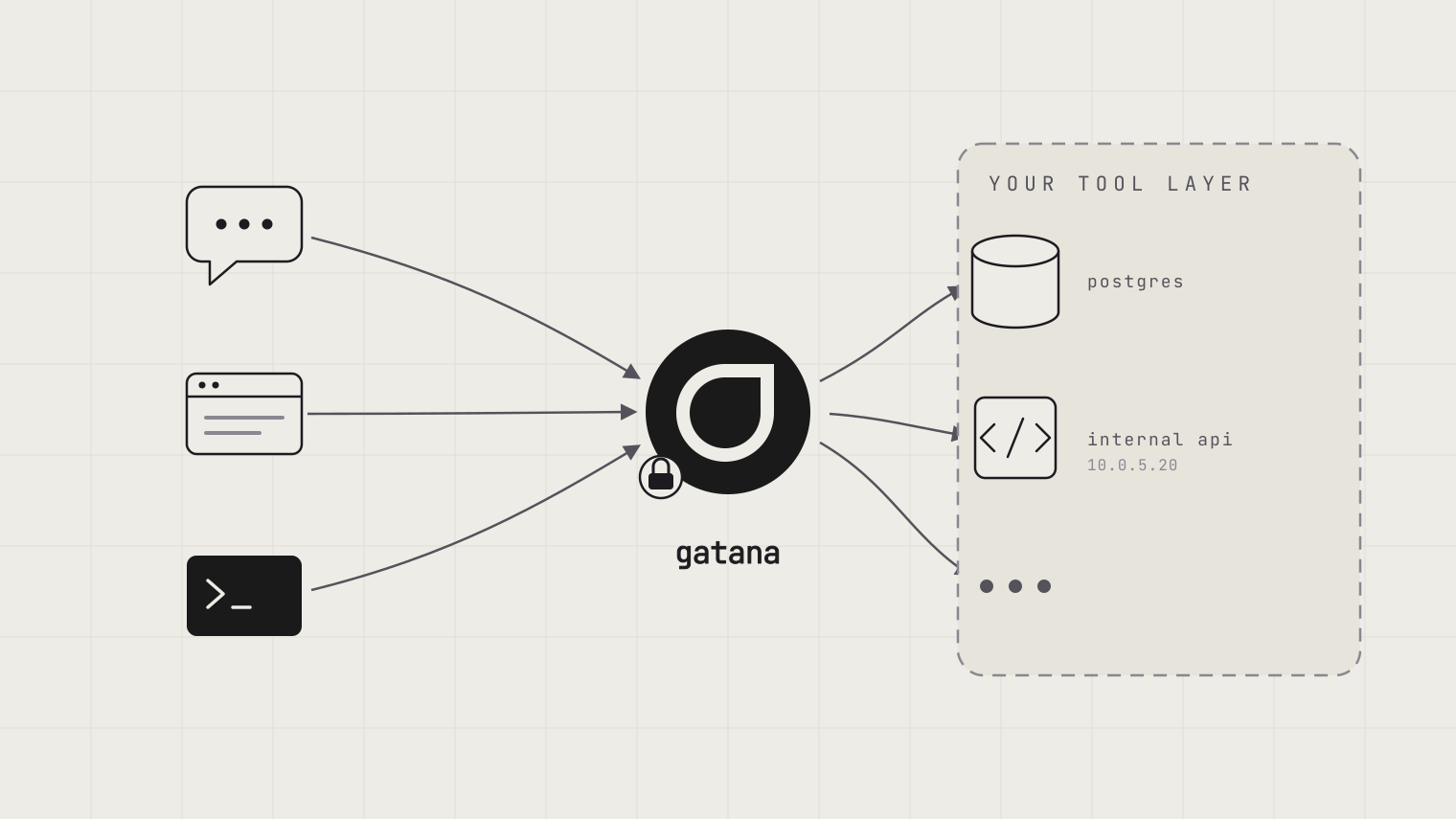
One URL, every tool
Claude supports remote MCP servers on every surface: claude.ai in the browser, Claude Desktop, and Claude Code in the terminal. Each of them can hold its own list of servers, each with its own credentials, and that list multiplies by every person on your team.
A gateway collapses that into one connection. Gatana sits in front of all your MCP servers and exposes them at a single endpoint:
https://gatana.ai/mcpThe URL is the same for every organization. When you sign in, Gatana asks which organization is yours.
Connect Claude to that URL once and it sees every server behind the gateway: the SaaS integrations, the servers Gatana deploys for you, the internal APIs. When someone adds a new server to Gatana later, it appears in Claude without anyone touching client configuration again.
Here is how to make the connection, surface by surface.
Connect claude.ai and Claude Desktop
claude.ai and Claude Desktop share one connector list, so setting this up once covers both.
- Open Settings → Connectors.
- Click Add custom connector.
- Name it (for example, “Gatana”) and paste your MCP URL:
https://gatana.ai/mcp. - Click Add, then Connect. Your browser opens Gatana, where you choose your organization and sign in. If your organization uses federated sign-in, this is your normal SSO flow.
- In a chat, open the tools menu and enable the Gatana tools you want available.
Custom connectors are available on Claude’s paid plans. On Team and Enterprise plans an admin can add the connector once for the whole workspace, which is the natural pairing with a gateway: one connector for the organization, and Gatana decides per user which tools that connector actually exposes.
Connect Claude Code
One command:
claude mcp add --transport http gatana https://gatana.ai/mcpThen run /mcp inside Claude Code and pick Authenticate. The browser opens, you sign in to Gatana, and the session is stored. Add --scope user to the command above if you want the connection in every project instead of just the current one.
To share the configuration with your team, commit a .mcp.json at the repository root instead:
{
  "mcpServers": {
    "gatana": {
      "type": "http",
      "url": "https://gatana.ai/mcp"
    }
  }
}
No token in the file. Each person who opens the project signs in with their own account, so every tool call runs with their own credentials and shows up under their name in the audit log.
Headless environments: use a personal access token
OAuth needs a browser. For CI jobs, servers, and other places without one, create a personal access token under Clients & API Keys in the Gatana dashboard and pass it as a header. A token belongs to one organization, so it goes to your organization’s own URL:
claude mcp add --transport http gatana https://YOUR_ORG.gatana.ai/mcp \
  --header "Authorization: Bearer YOUR_PERSONAL_ACCESS_TOKEN"
The Connect button next to each token in the dashboard shows this configuration ready-made for Claude Code and other common clients, with the URL and token already filled in.
When you have the choice, prefer OAuth. The token is short-lived, lives in the operating system’s credential store, and revokes itself when the client disconnects. Full details on both methods are in the MCP authorization docs.
What you get after connecting
This is the part a direct server-to-client setup cannot give you. The moment Claude signs in, it appears as a client under Clients & API Keys, and from there:
- Scope it. Attach profiles to the connection to control which servers and tools this particular client sees. Claude Code on your laptop can have broader access than the connector your whole workspace shares. A restrictive profile narrows a connection down to exactly the tools it needs.
- Watch it. Every call Claude makes is in the audit log, filtered per client, per token, per user.
- Revoke it. One click disconnects the client. No hunting through config files on other machines.
Troubleshooting
- Claude asks to sign in again. The client’s refresh token expired or was revoked. Signing in again is all it takes; the connection keeps its name and profiles.
- A tool is missing. Check the profiles attached to the connection under Clients & API Keys. A restrictive profile on the client, the token, or your user may be filtering it out.
- The connector fails to add on claude.ai. Check the URL ends with
/mcpand uses your organization’s subdomain. The endpoint speaks streamable HTTP, which every current Claude surface expects.
Connect once, govern centrally, and let the gateway do the multiplying.